Installing, every setting, good practice and answers to common questions. Search for a word, or browse the sections below.
Maya 2023, 2024, 2025, 2026 and 2027 · Windows
Nothing matches that yet. Try a shorter word, or email zubin@meshlabz.com and I'll help.
Getting started
Installing
Installing takes about two minutes. Clonr runs on Windows in Maya 2023, 2024, 2025, 2026 and 2027. Your licence (Personal or Studio) is explained in LICENSE.txt, included in the download.
Move the Clonr folder somewhere permanent, for example Documents\Mesh Labz\Clonr. Maya loads Clonr from this folder every time it starts, so installing straight from Downloads stops working the day Downloads is cleaned up.
Start Maya and drag drag_into_maya_to_install_clonr.py from that folder into the viewport.
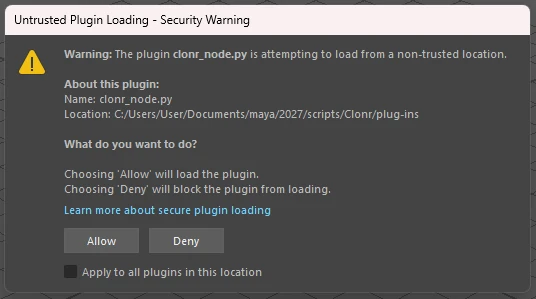
Maya asks whether to trust the plug-in. Tick Apply to all plugins in this location and click Allow.
A message confirms that Clonr is installed and a Mesh Labz › Clonr menu appears at the top of Maya. No restart is needed.
Maya asks about every plug-in installed outside its own folders. This is standard and not specific to Clonr. Clonr is made of two plug-ins, clonr_node.py and clonr_instancer.py, so the same window can appear a second time. Each time, tick Apply to all plugins in this location and click Allow. Maya then trusts the Clonr folder and stops asking, once per Maya version.
Select a mesh and choose Mesh Labz › Clonr › Add Clonr. The object keeps its name and place, shows a row of copies, and the Clonr panel opens in the Attribute Editor.
Change Shape to try the five layouts: Line, Circle, Curve, Surface and Transform.
Open Randomize and raise Rotate Y or Scale for variety. Change Seed for a different variation.
To change the object itself, click Edit Original, model as usual, then click Done Editing. Every copy follows.
When the layout is final, Mesh Labz › Clonr › Bake to Mesh turns the copies into plain geometry. Remove Clonr gives you the original object back.
A row of copies. Heading and Slope set the direction. Gap is measured in piece lengths, so 0 means touching. Align to Line, Rows with Row Direction Up for walls or Across for floors, Row Gap, Stagger (0.5 gives a brick bond), and Move and Rotate for the whole row.
A ring. Count or Distance, Full or Arc with Sweep Angle, Radius, Long Side (Along Ring for fences, Points Out for spokes), Central Axis, Start Angle, and Rings stacked Up for towers or Inward, with Ring Gap and Stagger.
Pick Curve, or select the mesh and a curve before Add Clonr. Count, Fill Curve or Distance, Spacing and Offset, Bend Along Curve, Keep Upright, and Rows Up for a wall along the curve or Across for a path.
Each copy is the previous one plus one step: Step Translate, Step Rotate and Step Scale, or Create Locator and move, rotate or scale the locator to set the step.
Add Object mixes up to five objects in total, the original plus four, at random or in order. Each keeps its own materials. Right-click an entry to remove it.
Max Vertices. Clonr won't build a mesh heavier than this. It starts at 1,000,000 and can be raised to 10,000,000. In Maya 2023 and 2024 the limit is 1,000,000.
Tick Instances for hundreds or thousands of copies. Instances are light and don't count against Max Vertices. Set up the layout, then Bake if you need real geometry. Instances go up to 500,000; past that, Clonr keeps the last result and says so in the Script Editor.
Use Edit Original for modelling. Whole-object tools on the Clonr object, such as Soften Edge or Smooth, are fine. A face-level edit made directly on the copies doesn't follow them when Count changes and ends up on the wrong faces. While editing, the original is selected, so Delete deletes the original itself. Two presses of Ctrl+Z bring it back.
With hundreds of instances or more, untick Show Copies While Editing before moving the original around. With the copies shown, every step of a drag updates all of them, which is slow, and with very large counts Maya's Move tool can crash on release. With the copies hidden, editing is fast and stable, and the copies update as soon as you click Done Editing.
Once Clonr is added, never scale the Clonr object along a single axis, and the same applies to any group it sits in. In Maya, a parent's scale passes down to everything inside it, so a one-direction stretch skews the turned copies; any rotated object in a stretched group does the same. Scaling evenly, with the same value in X, Y and Z, is fine. To make the pieces longer, flatter or taller, scale the original in Edit Original.
Line, Circle and Curve space copies by the object's bounding box. If an edit makes part of the original stick out further, such as a long branch or a stray vertex, every copy moves apart to make room. A negative Gap or Row Gap brings them closer.
If a change would go over Max Vertices or the Instances limit, Clonr keeps showing the last result that fit and prints a message in the Script Editor. Further changes wait until you're back under the limit, then update at once. Bake is refused in that state, so you never freeze something other than what the settings describe.
The shape, the first UV set, hard and soft edges, materials (per face too), custom normals, vertex colours from the current colour set, creases, and the original's display and render settings such as Smooth Mesh Preview and Arnold subdivision.
After Pick Curve, Pick Surface or Add Object, the next click picks. Clicking empty space or the wrong kind of object, or pressing Esc, cancels. Distance settings such as Radius, Spacing, Offset, Move and Step Translate use your scene's working units, so centimetres, metres, millimetres and inches all behave the same.
The slider runs to 50 for Count and 20 for Rows and Rings, and dragging never changes that range. For more, type the number into the field. The slider then extends to it, and returns to its normal range once the value is back within it.
The Clonr object, or a group above it, has been scaled along one axis. Scale it evenly instead, and reshape the pieces through Edit Original. If the object itself was stretched before you added Clonr, Clonr freezes that stretch into the original for you, so its Scale reads 1 1 1 and Remove Clonr gives the stretch back. If the scale is animated, locked or has objects parented under it, Clonr leaves it alone and warns you. In that case, freeze its scale with Modify › Freeze Transformations before adding Clonr.
Copies stand on their own bottom, and Randomize turns, scales and flips each one in place, wherever the pivot is. On a Curve the pivot doesn't affect placement at all. This keeps layouts stable when models come in with pivots in odd places.
Which side of the piece follows the ring comes from the object as modelled. To switch between a fence and spokes, use Long Side in the Circle section rather than rotating the original.
Stacked and inward rings are spaced by the piece as modelled, so Local Rotate spins every piece in place and the rings stay put. If you stand a piece up with Local Rotate, adjust Ring Gap to match.
Maya can't select instanced copies in the viewport; this is true of every Maya instancer. Click the Clonr object in the Outliner instead. It keeps your object's name. Inside it is your hidden original and, with Instances on, the parts Clonr uses to draw the copies. Leave those to Clonr.
Check Max Slope. At 0, only perfectly flat, upward-facing ground is allowed, which on a sphere or rough terrain can mean no copies at all. 90 allows anything facing upwards and 180 allows every face. Copies that land on excluded areas are dropped rather than moved, so a lower Max Slope also means fewer copies than the Count.
For FBX or OBJ, a render farm, or anyone without Clonr, bake first. A live Clonr object's copies are generated by Clonr rather than stored in the scene.
Only the first UV set and the current colour set carry over. Faces with a hole cut into them, common in CAD and SVG imports, come out broken; fill or split them first.
Unloading it in the Plug-in Manager while the scene has Clonr objects is refused, to protect the scene. Maya adds its own warnings; Clonr keeps working, and a restart tidies up.
Replace the contents of the Clonr folder with the new version, or place it in a new permanent folder, drag its installer into Maya, then restart Maya. The installer reminds you to.
Bake or Remove any Clonr objects you want to keep as plain geometry. Then delete Documents\maya\modules\clonr.mod, untick Clonr's Auto load in the Plug-in Manager, and delete the Clonr folder.

 lonr
lonr